
Using presets is the quickest way to get a high quality lower third for your project.

First, select the clip you want to use and place it in your timeline.
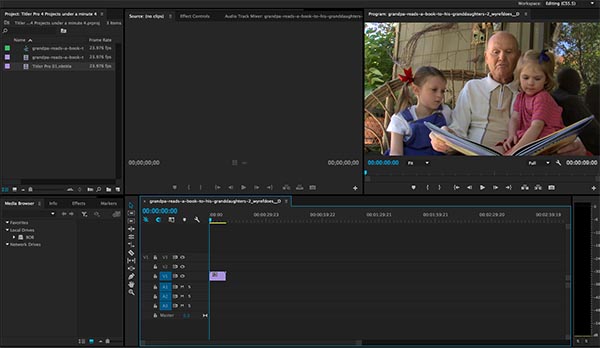
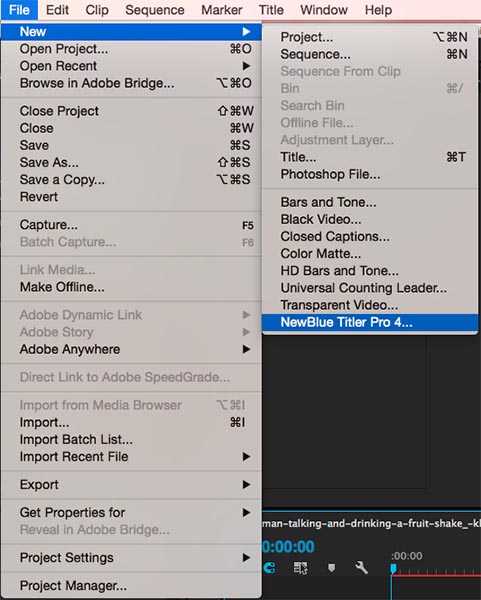
Next, open an instance of Titler Pro 4. For this example we are using Adobe Premiere Pro. To learn how to open Titler Pro in your NLE, see Adding Titles in Your NLE
This will open the Quick Edit window. Browse the Quick Edit Project Library and select a preset.
For this example we will use the "Red Streak" preset. To learn more about Quick Edit, see Quick Edit
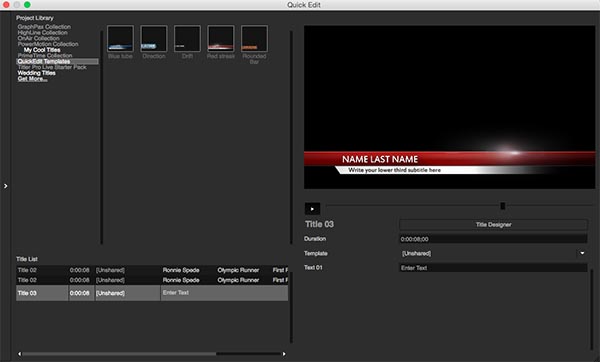
Double-click on the preset to apply the preset.
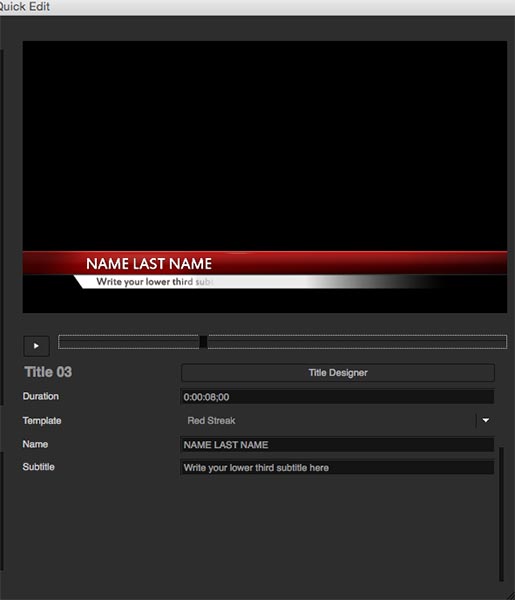
Edit the Name and Subtitle variables with your desired text.
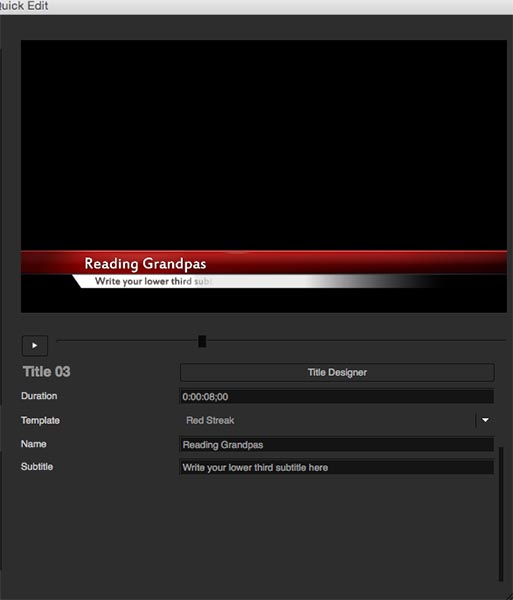
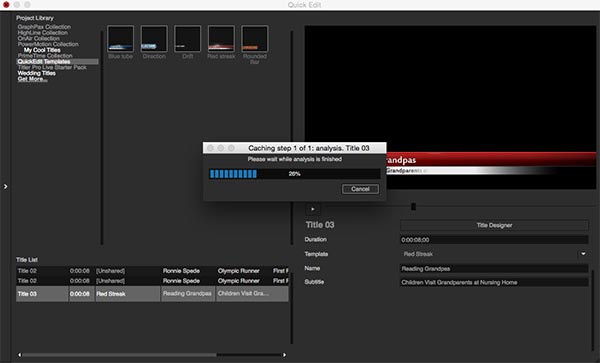
The preset will update the text after you type. When finished, close Quick Edit. The Title will now Cache.
To learn more about Cahcing and Performance, see Caching and Performance
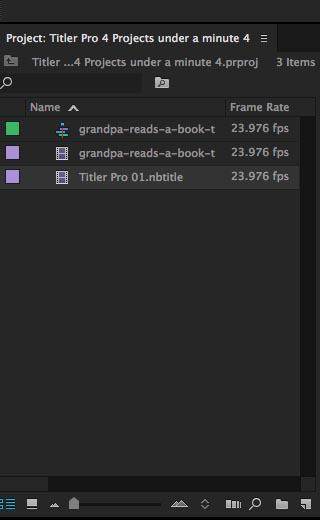
Your Title will now be available in the Bin or timeline, dpeending on your video editing application.
Click and drag the Title to yout timeline above your video clip.
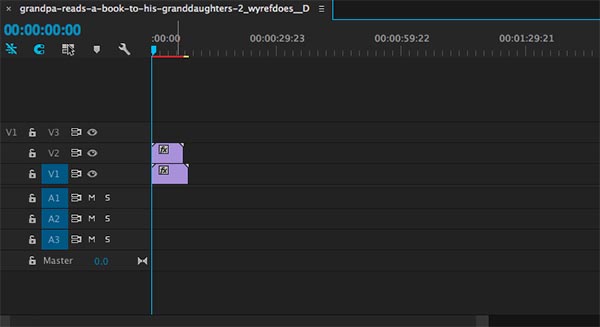
Preview the Title and render the video.
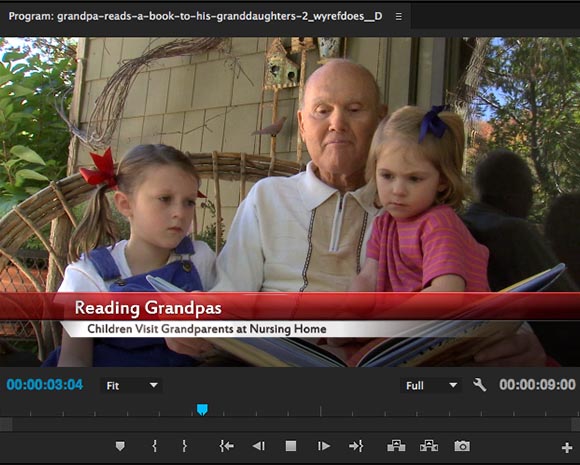
Your Title is now finished.