
When you create a Titler Pro 7 Express graphic in MAGIX VEGAS Movie Studio 16, the default design includes variables for a basic title and subtitle, but you can choose more detailed designs from the library. Variables include text, colors, images, and videos. Follow the steps in this article to choose a different design.
- Open VEGAS.
- Select an existing Titler Pro 7 Express media generator or video effect, or add a new graphic as described in Add graphics as media generators in VEGAS Movie Studio 16 or Add graphics as video events in VEGAS Movie Studio 16.
- In the Video Media Generators panel or Video Event FX panel, click the Choose Design button in the Video Media Generators panel or Video Event FX panel.
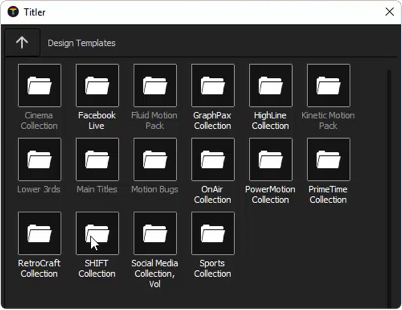
- In the design library, double-click a folder to view designs in that collection.
- Hover the pointer over a design to preview the design in the Preview panel.
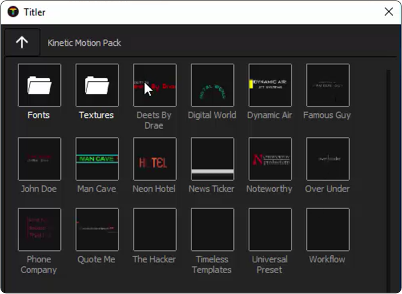
- Double-click a design to apply that design to the clip.
The design's variables appear in the Video Media Generators panel or Video Event FX panel. For example, the following image shows a design with variables for two lines of text and a color for each line.
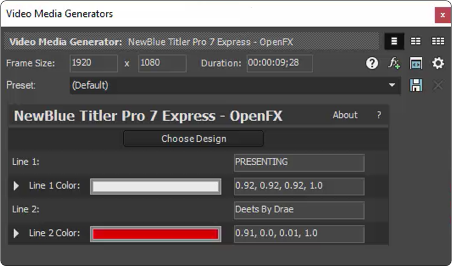
- In the Video Media Generators panel or Video Event FX panel, update the default value of each variable in your design.