
If you have StretchCast Premium and created a custom graphic, you can edit or delete a custom graphic from the project when the graphic is not in the playlist.
Tip: To delete graphics from the playlist, see Remove graphics from a playlist.
- Open a project that includes the custom graphic that you want to edit or delete.
- Click Settings.
- In Graphics, click the Custom style tab that includes the graphic that you want to edit or delete. (Your custom style tab may have a different name.)
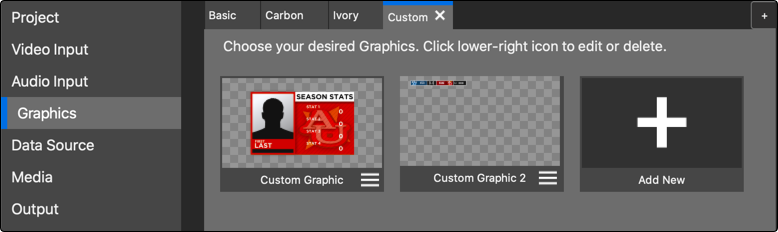
- If the custom graphic that you want to edit or delete is in the playlist, remove it from the playlist and then re-open the custom style tab. To do so, click the graphic to deselect it, click Done to save the settings and update the playlist, then click Settings > Graphics > Custom style tab.
- Click the Menu
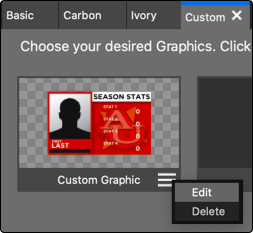
 button on the graphic’s thumbnail image and choose one of the following options.
- Edit — Opens the custom graphic in the Title Designer. For details about editing graphics in the Title Designer, see Create custom graphics.
- Delete — Deletes the custom graphic from the project.
- Click Done to close Settings.
- Click File > Save to save the changes to the project.