
- Open a project or create a new project for a live event.
- Click Settings if Settings isn't already open. (It opens automatically when you create a new project.)
- Click Streaming and select your preferred streaming option.
Note: A stream's resolution and frame rate can't be higher than the live output's resolution and frame rate (in Settings > Project > Project Settings).
Streaming options:
- Facebook Live
- Microsoft Stream
- Switchboard
- Twitch
- YouTube Live
- Generic RTMP (Real-Time Messaging Protocol (RTMP)
Facebook Live
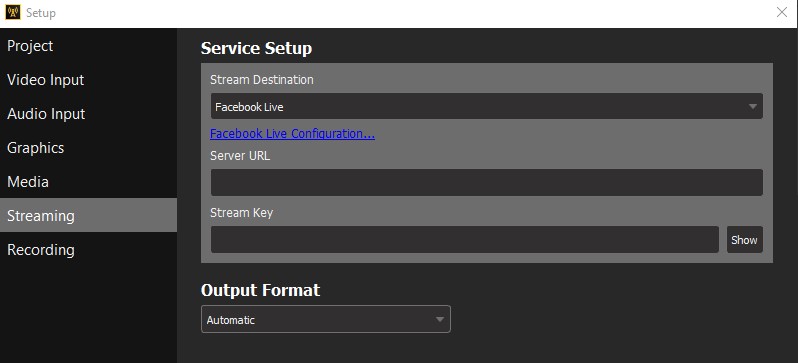
- Click on Facebook Live Configuration to open a web browser and setup your Facebook Live stream
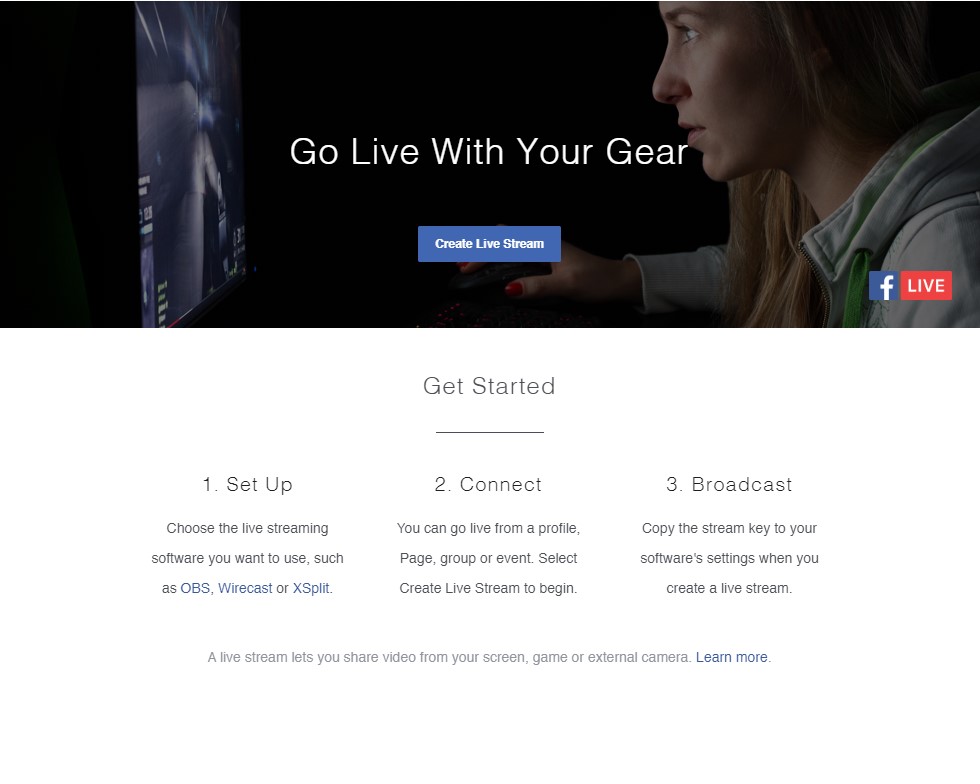
- Click on Create Live Stream to launch the Facebook Live Producer interface
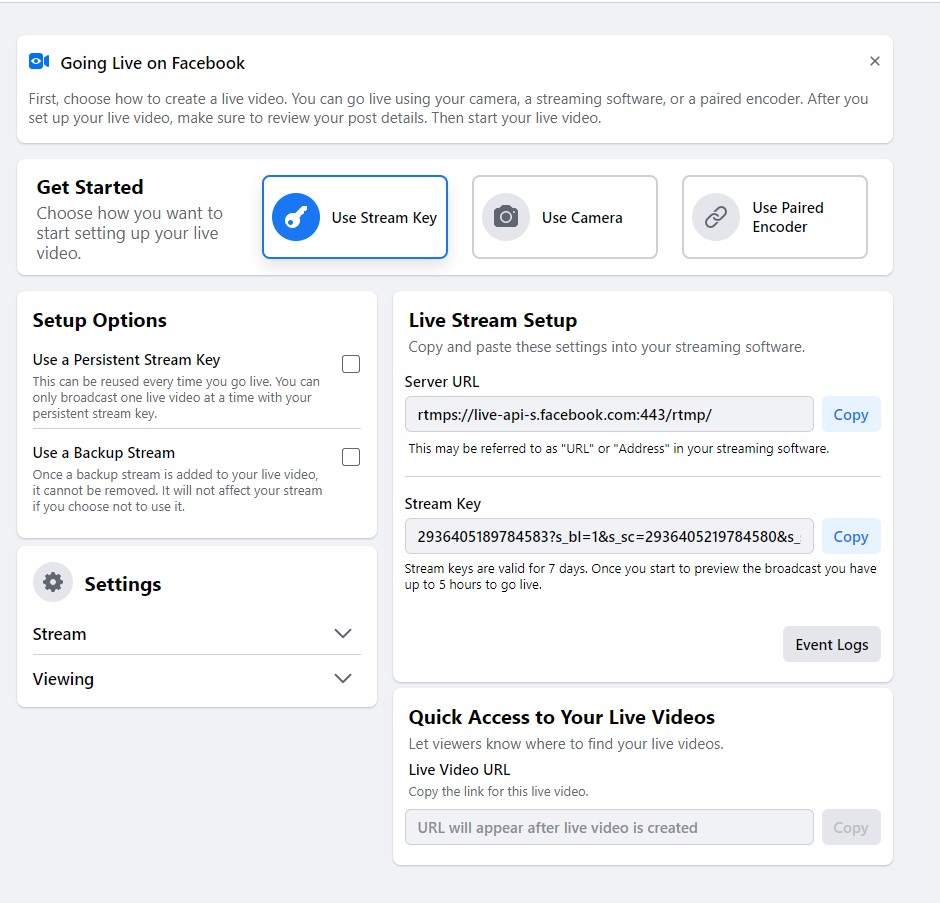
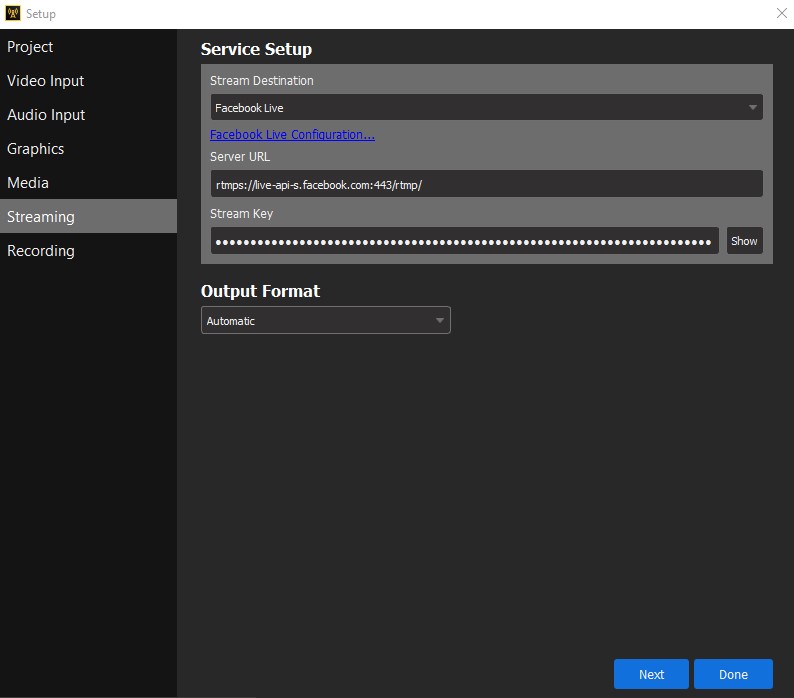
- Make sure that Use Stream Key is selected and copy the Server URL and Stream Key to the corresponding fields in VEGAS Stream and click the Done button
Microsoft Stream
- Start by creating a Live Event in Microsoft Stream (see Microsoft's instructions on how to Create a live event )
- Manually configure your encoder for live streaming in Microsoft Stream
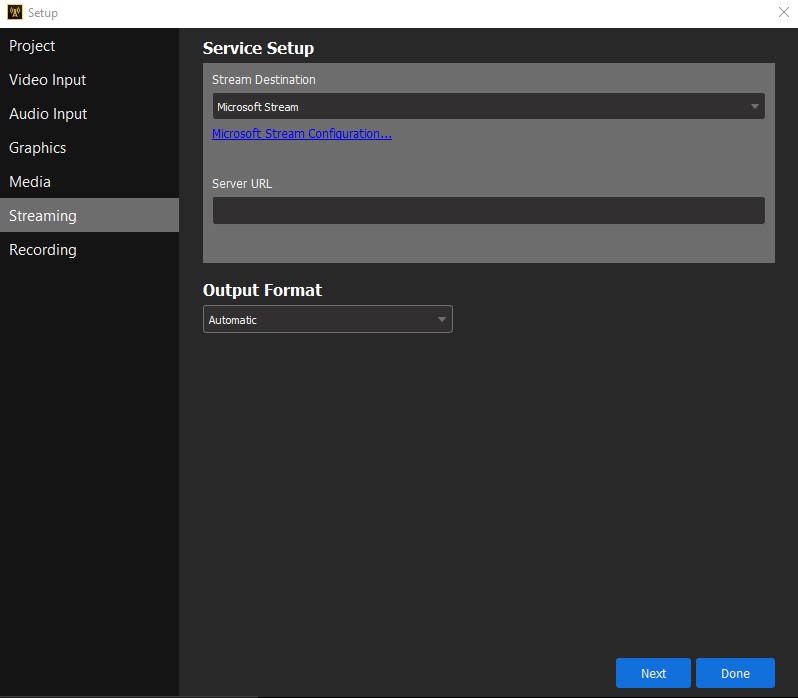
- Copy the Server Ingest URL from Microsoft Stream and paste it into the Server URL field in VEGAS Stream
- Click the Done button
Switchboard
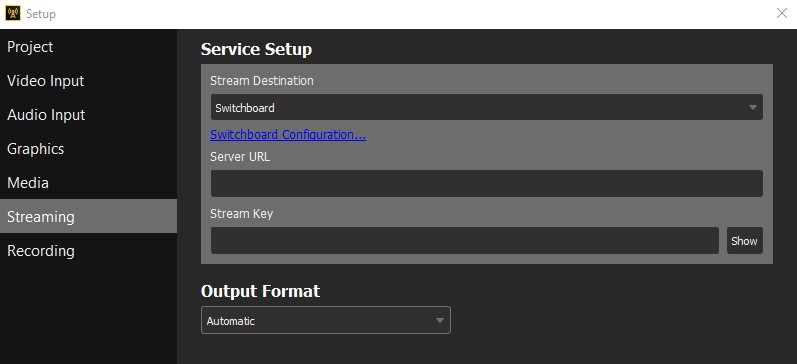
- If you have not set up a stream in Switchboard, click the Switchboard Configuration link to launch a web browser and go to the Switchboard website
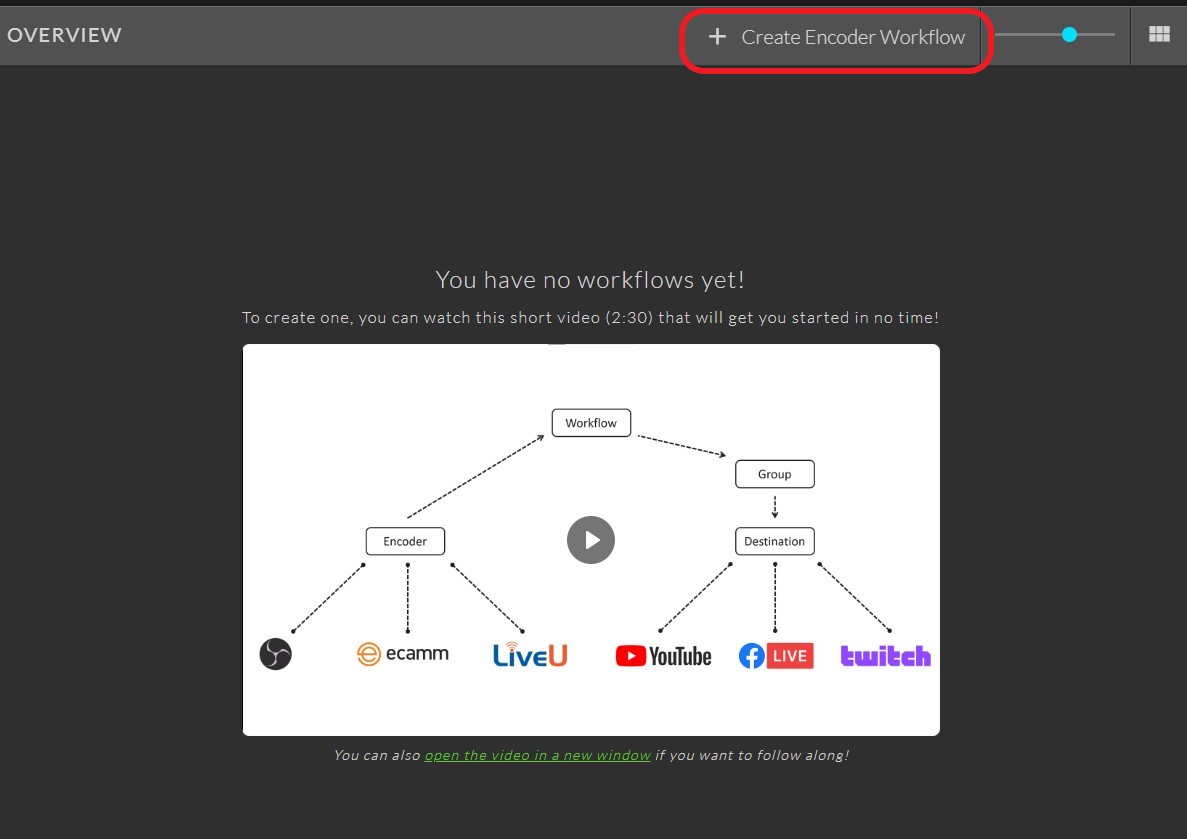
- Click on Create Encoder Workflow
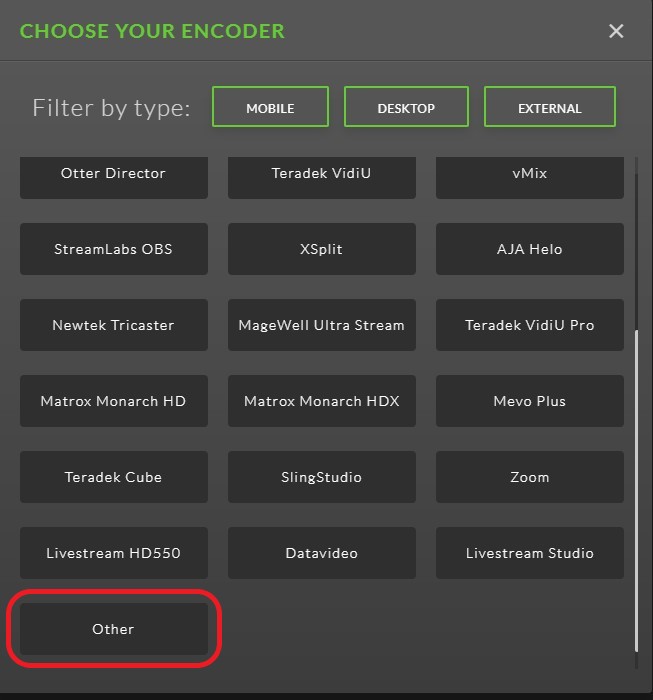
- Select Other from the list of encoders
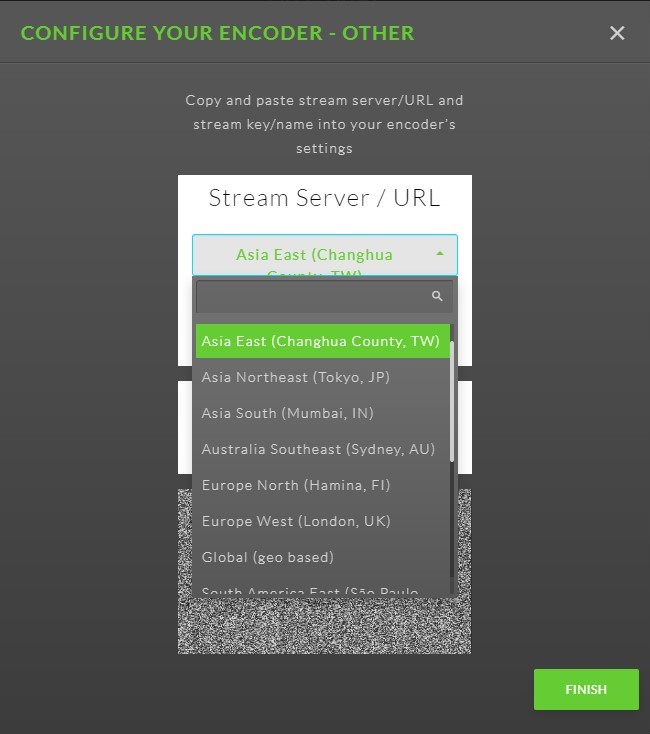
- Pick the location that is closest to you geographically from the dropdown list
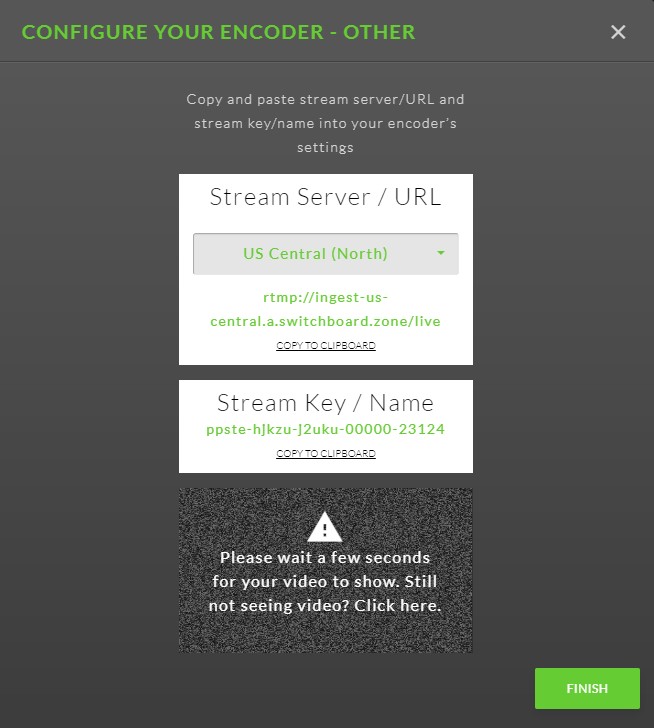
- Copy the Stream Server / URL and paste it into the Server URL field in Stream. Copy the Stream Key / Name and paste it into the Stream Key field.
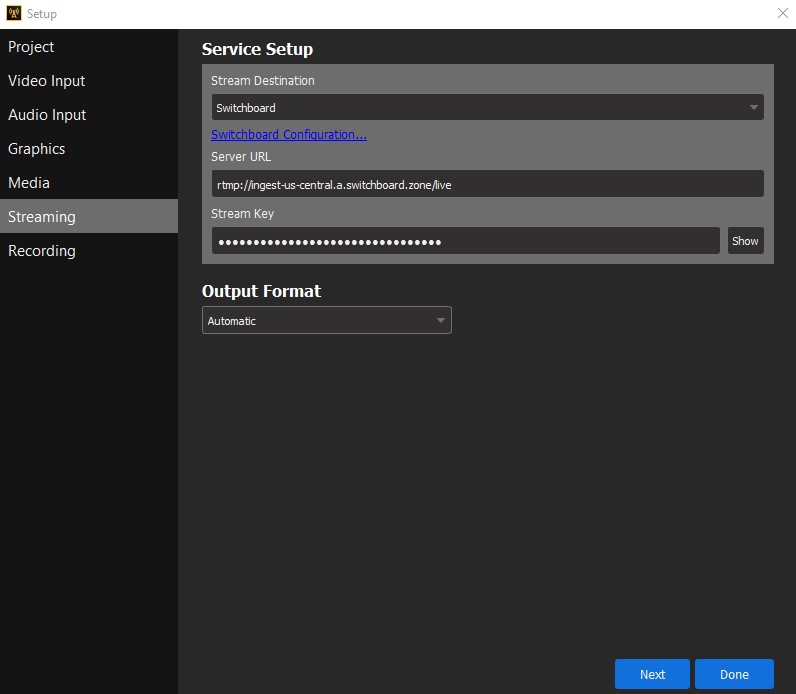
- Click the Done button.
Twitch
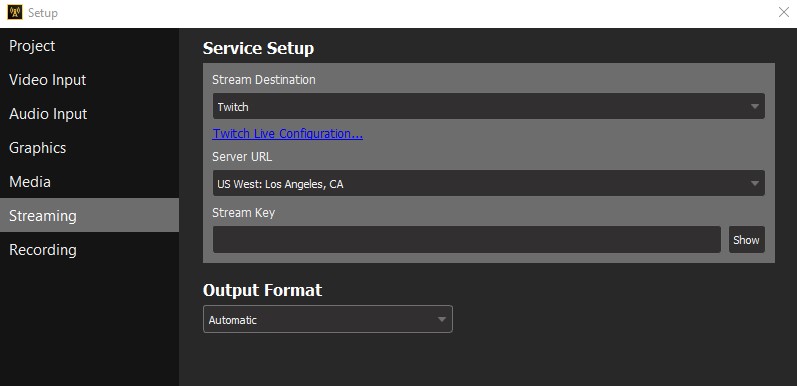
- Click on the dropdown menu under Server URL and select the location closest to you geographically
- Click on Twitch Live Configuration to launch a web browser and go to your Twitch settings
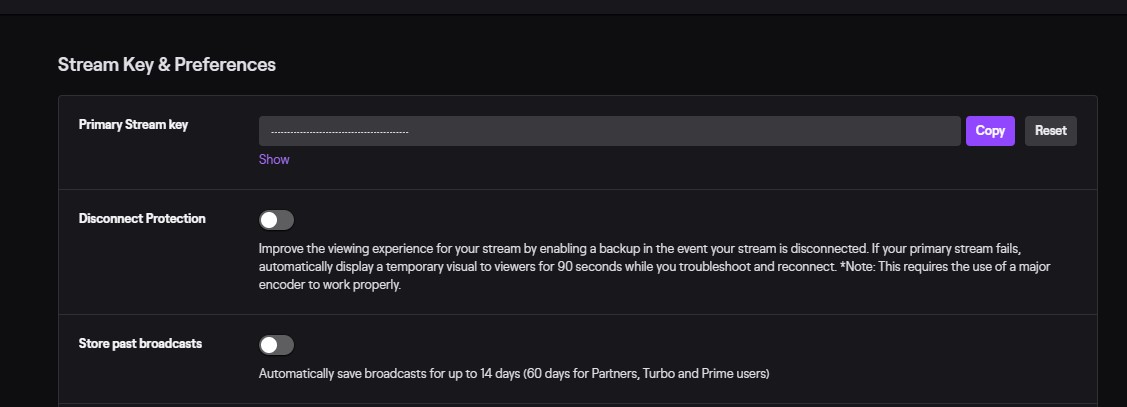
- Click the Copy button next to your Primary Stream key
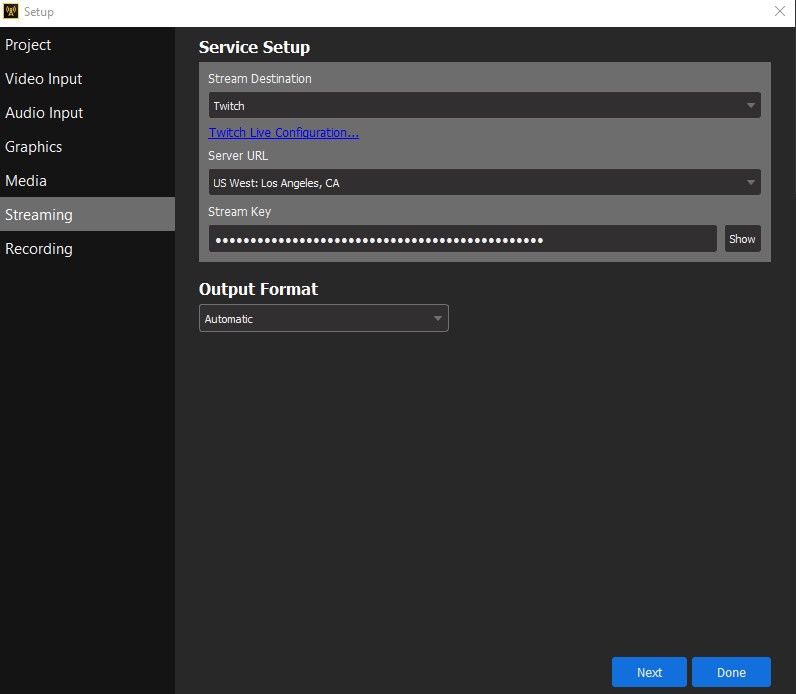
- Paste they key into the Stream Key field
- Click the Done button
YouTube Live
- Start by creating a YouTube Live stream (see YouTube's page Create a live stream with an encoder )
- Note: The YouTube documentation refers to an encoder. In this case VEGAS Stream is your encoder.
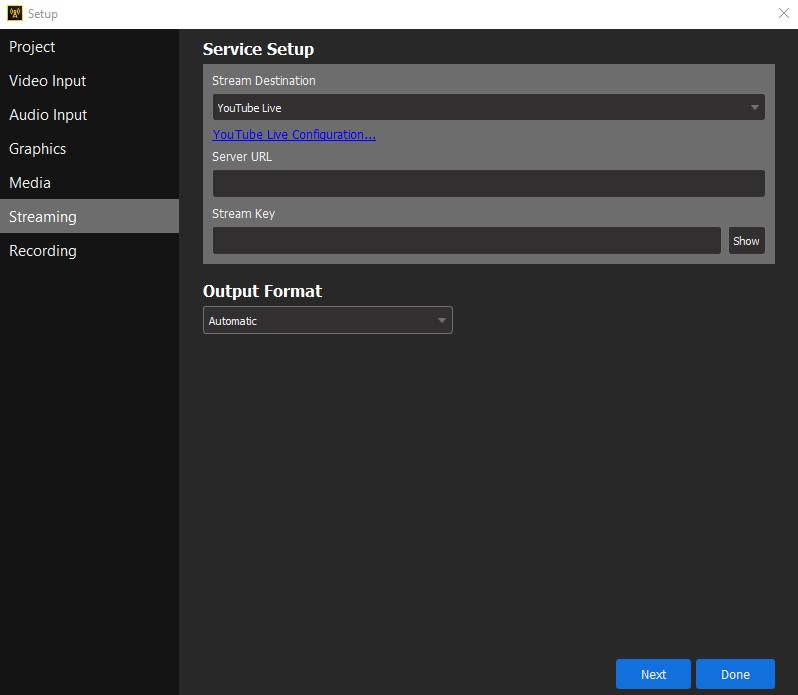
- Enter the Stream URL from YouTube in the Server URL field in Stream
- Enter the Stream Key from YouTube in the Stream Key field in Stream
- Click the Done button
RTMP (Real-Time Messaging Protocol)
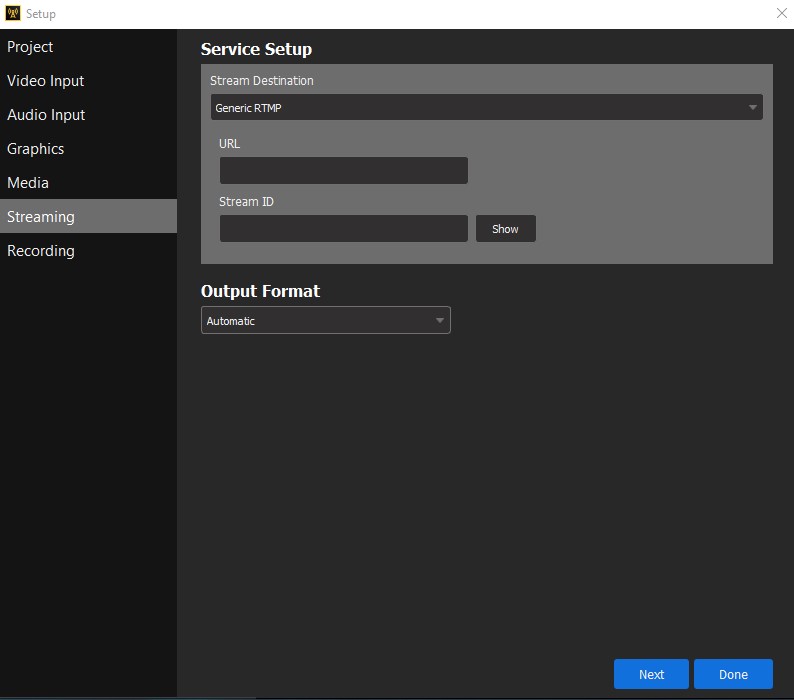
- Enter the URL of the RTMP server
- Enter the Stream ID
- Select a resolution and frame rate from the Output Format drop-down list.
- Click the Done button.